School Website: 12 Pages Every School Needs
A parent opens your school website on a phone. They want one thing. It might be the fees, the admission form, the term dates or a phone number. If they cannot find it in a few taps, they message the office, and your staff answer the same questions all week.
A good school website removes that pressure. It answers questions before they are asked. This guide lists the 12 pages every school needs, what goes on each one, and how to keep them useful.
Who your school website is for
Think of four visitors before you plan a single page.
- Parents who are choosing a school.
- Parents whose children already attend.
- Students who need results, timetables or learning material.
- Teachers, partners and inspectors who want to confirm that you are real and well run.
Most of them arrive on a phone. Plan for small screens first, and keep each page short and clear.
The 12 pages
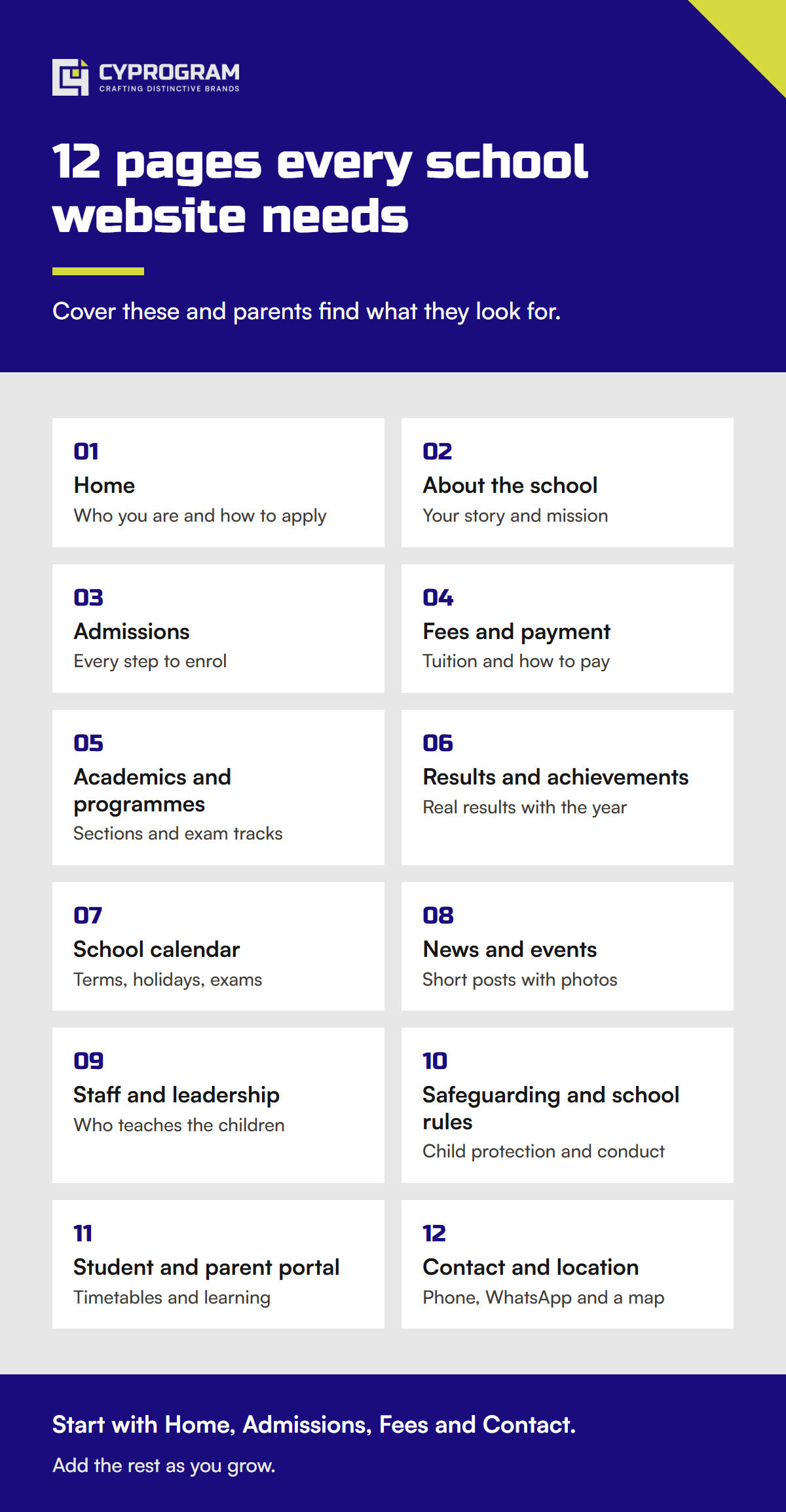
1. Home page
Say who you are, where you are and which levels you teach. Show a clear button for admissions, a button for contact and the next important date. Use real photos of your campus and students, with permission from parents.
2. About the school
Tell your story in plain words. Include your mission, your values and the year you opened. Add your language of instruction. For a bilingual school, say how English and French are used in class.
3. Admissions
This is the page that brings in new families. Explain each step in order: enquiry, visit, application, documents, decision and enrolment. Add the dates, the documents needed and a form that works on a phone.
4. Fees and payment
Parents look for this page first. Show tuition by level, the other charges and the payment dates. Explain how to pay, for example by bank, by cash at the office or by mobile money. If you can accept payments on the site, say so here. We cover that in our guide to accepting MTN MoMo and Orange Money on your website.
5. Academics and programmes
List your sections, classes and exam tracks. If you prepare students for national exams such as the GCE or the concours, name them. Add a short note on how you support students who need extra help.
6. Results and achievements
Post real results with the year. Never inflate them. If you do not have a summary yet, start with a list of events, prizes and projects. Honest pages build more trust than big claims.
7. School calendar
List term dates, holidays, exam weeks and parent meetings. Add a downloadable version that parents can save on their phone. Update it each term.
8. News and events
Short posts with a photo are enough. Share sports days, open days, trips and notices. This page shows that the school is active, and it gives Google fresh content to index.
9. Staff and leadership
Parents want to know who teaches their children. Add the names, roles and a short line about each leader. Ask each person before you publish a photo.
10. Safeguarding and school rules
State how you protect children, who to report a concern to and what the code of conduct says. Add your uniform and attendance rules here too. A clear page on this topic tells parents that you take care seriously.
11. Student and parent portal
Give a clear link to the place where families see timetables, notices or learning material. If you run online classes, link to the platform from this page. Our school websites and online learning service covers this area.
12. Contact and location
Add a phone number, a WhatsApp number, an email address, opening hours for the office and a map. Describe the location with a landmark, because many streets have no formal name. Add a short enquiry form.
Quick page checklist
| Page | Parent question it answers |
|---|---|
| Home | What kind of school is this? |
| About | Can I trust the people behind it? |
| Admissions | How do I apply? |
| Fees | What will it cost and how do I pay? |
| Academics | What will my child learn? |
| Results | Do students succeed here? |
| Calendar | When does term start? |
| News | Is the school active? |
| Staff | Who teaches my child? |
| Safeguarding | Will my child be safe? |
| Portal | Where do I find notices and lessons? |
| Contact | How do I reach someone today? |
Design rules that help parents
Plan for phones and slow connections
Many families browse on a phone with limited data. Compress photos, avoid heavy video on the home page and keep the menu short. A page that loads fast gets read.
Keep the menu simple
Use five or six main menu items, for example About, Admissions, Fees, Academics, News and Contact. Put the rest in the footer or under these items.
Use clear buttons
Every page should lead to a next step. “Apply now”, “Download the fee schedule” and “Message us on WhatsApp” work well. Avoid vague labels such as “Click here”.
Write for parents, not for inspectors
Use short sentences and common words. Avoid long mission statements that say nothing. Say what you do and how you do it.
Support more than one language
If your families speak both English and French, give each language its own version of the key pages. Admissions, fees and contact matter most.
Common mistakes to avoid
- Hiding fees. Parents leave when they cannot find a price.
- Using stock photos of children who do not attend your school.
- Posting an admission form that only works on a computer.
- Leaving last year’s dates on the calendar.
- Listing a phone number that nobody answers.
Keep the site current
An old site hurts your school more than no site. Give one person the job of updates. Each term, check the calendar, the fees, the staff list and the contact details. Remove any news that is more than a year old unless it is an achievement worth keeping.
What it takes to build one
A school website with these pages fits our business range of $800 to $1,500. A small site with fewer pages can start at $500. A school with a full online learning platform, student accounts and payments needs custom work from $2,000. You can see every option on our pricing page.
Timelines are 2 weeks for a starter site and 3 to 6 weeks for larger projects. Payment is 50% to start and 50% on delivery, and each project includes 2 to 3 rounds of revisions.
We have shipped over 100 products from our studio in Buea, Cameroon, for clients on four continents. One of them is eStudyUniverse, an exam preparation platform used by more than 10,000 students. You can read how we built it in the eStudyUniverse case study.
Next step
Start with the list above. Mark the pages you already have, then the pages you are missing. Collect your fee schedule, calendar and photos before design begins, because content is what slows most school projects.
When you are ready, message us on WhatsApp with your school name and the pages you need. We will reply with a clear plan.
Need a website or app like this?
Tell us about your project on WhatsApp. You get a free call and a fixed quote.